Appearance
AFAS
This documentation details how we use AFAS to facilitate seamless data exchange between your business and our platform, providing technical specifications and step-by-step instructions for efficient integration and information management.
About GET connectors
An AFAS GET Connector is a type of connector used in the AFAS Profit software to retrieve data from its database. It enables external applications to request and receive data stored in AFAS Profit by defining specific endpoints. These endpoints are configured to extract records from certain tables within the AFAS SQL database, allowing for precise data retrieval based on the defined fields and relationships within the database.
Available connectors
Employees GET connector
The employees GET connector gives us a way of retrieving limited information about your employees. We use this when they log in via SSO to complete their profile and correctly configure their environment.
Download: smarthealth_employees_v1.gcn (version 1, 2024-10-21)
The data we retrieve:
json
{
    "employee_number": "",
    "email": "",
    "username": "",
    "first_name": "",
    "insertion": "",
    "last_name": "",
    "street_1": "",
    "house_number": "",
    "house_number_addition": "",
    "postal_code": "",
    "city": "",
    "country": "",
    "locale": "",
    "phone_number": "",
    "employment_end_date": "",
    "organizational_unit_id": ""
}
Organizational units GET connector
The organizational units GET connector returns your company's organigram and hierarchy. We can use this to build the extended filter for the health index.
Download: smarthealth_organizational_units_v1.gcn (version 1, 2024-10-21)
The data we retrieve:
json
{
    "id": "",
    "parent_id": "",
    "description": "",
    "layer_0": "",
    "layer_1": "",
    "layer_2": "",
    "layer_3": "",
    "layer_4": "",
    "layer_5": "",
    "layer_6": "",
    "layer_7": "",
    "layer_8": "",
    "layer_9": "",
    "created_at": "",
    "ended_at": ""
}
Importing a connector
To get started setting up a connector, you need to configure authentication first. You'll need to create an "app connector" aka an authentication token (think OAuth2 Bearer token).
INFO
You'll need an app connector and user group for each client or application that wants to use the connector.
In your AFAS Profit environment:
- Click "Algemeen" in the sidebar
- Under "Beheer" select "App connector"
- Click the "Nieuw" button
- Enter
smarthealth-appas description - Enable the "Automatisch token genereren" option
- Under "Gebruikersgroep", enable "Maak nieuwe gebruikersgroep op basis van App connector-naam"
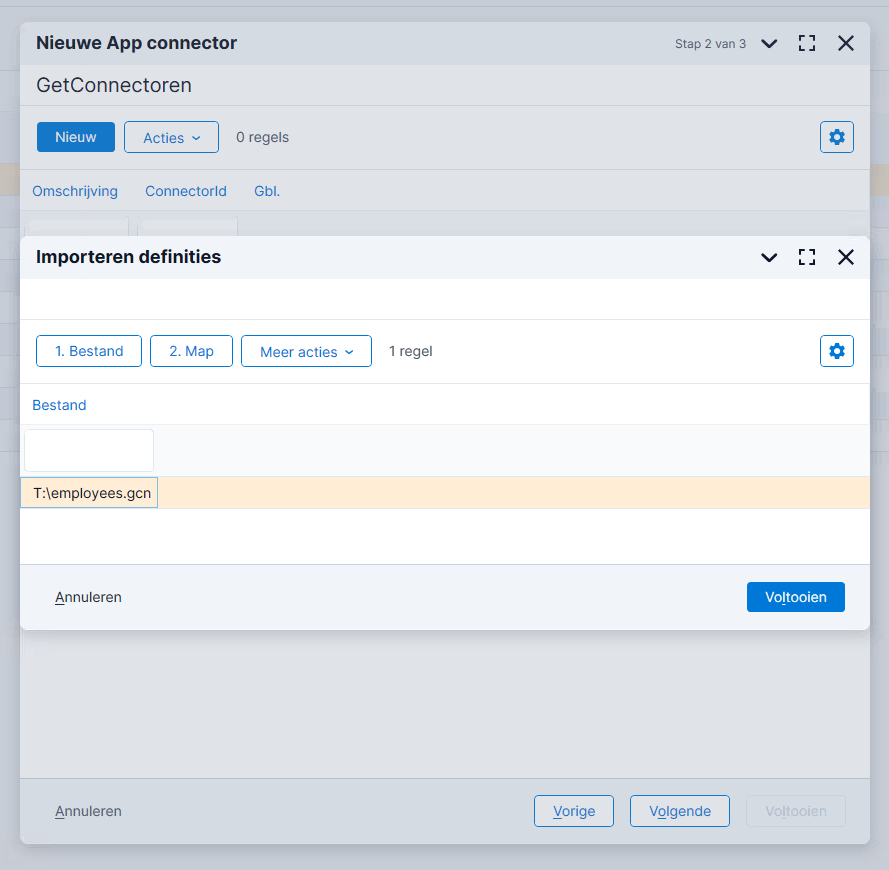
- Click "Volgende", then "Acties" > "Importeren", select the
.gcnfile you downloaded earlier, and click "Voltooien" - Click "Volgende" and then "Voltooien" to create the app connector and import the chosen connector
- Save the token in your password manager
Importing a connector:
Optional configuration
INFO
These steps are optional but encouraged.
Setting up rights for the newly created user group
If you use data filters, define the specific rights and access restrictions that apply to the user group of the App connector. This typically applies to employees, employers, etc.
See https://help.afas.nl/help/NL/SE/App_Auth_Meth_DF_Activ.htm for more information.
Testing a connector
- Go to https://connect.afas.nl/account
- Navigate to the "REST/JSON" tab and click "GetConnectors"
- In the "AFAS Online member nr" enter the environment ID as numbers only
- Select "Production" as "Environment type" or the one of your environment
- Select "Token authorization" as "Authentication type"
- And finally enter the full token you received in the previous step (
<token><version>1</version><data>71F4…</data></token>) - Click "Login with token"
- Under "GetConnector", select the GET connector you want to test
- Click "MetaInfo" to get details about the format or "Execute" to retrieve all demo employees in the given format
Information we need
Now that your connector has been configured and verified working, we'll need the following information to establish a connection between our platform and your AFAS environment:
- The app connector authentication token
- The Profit API URL
- E.g. https://#####.restaccept.afas.online/ProfitRestServices/connectors/smarthealth_employees
- You can find this on https://connect.afas.nl/rest/get after logging on and selecting the previously imported connector
Please send this information to [email protected].
TIP
Instead of sending the token as a plain string via email, please use your password manager's export functionality or a third party one-time share tool to safely share the authentication token.